

GitHub
Configure GitHub destinations to automatically create and manage GitHub issues from feedback submissions
Overview
The GitHub destination lets you automatically create GitHub issues every time someone submits feedback through your forms. encatch uses a Github App (Self Hosted) connector so issues are created through a GitHub App installed on your repository—not a personal access token.
This guide shows how to add a realtime destination, enter GitHub App credentials, configure issue details, add optional filters, and enable the destination.
What You'll Need
Before you start, make sure you have:
- A published feedback form — Only published feedback appears in the Add Destination dialog
- A GitHub App — Created in your GitHub organization or user account
- GitHub App installed on the target repository — With permission to create issues
- GitHub App ID — From your app’s settings on GitHub
- Private key (.pem) — The key file generated when the GitHub App was created
- Repository owner and name — The GitHub user or organization plus the repo slug (for example,
octocatandhello-world)
Step 1: Open the Destinations Page
Go to Destinations in your encatch dashboard. Click + Add Destination in the top-right corner.
Step 2: Add a New Destination
The Add New Destination dialog opens with a Realtime Destination badge.
Complete these fields:
Feedback
Select published feedback that will be delivered to this destination. The dropdown shows each form’s title and description. If nothing appears, publish your feedback form first.
Destination name (required)
Enter a name before you click Create Destination. Maximum 50 characters at create time (character counter shown in the dialog).
Description (optional)
Optional short description. It is only saved if you enter text here.
Connector
In the connector list, click Github App (Self Hosted):
| Property | Value |
|---|---|
| Name | Github App (Self Hosted) |
| Tag | GithubAppSelf-hosted |
| Version | v1 |
| Description | Create Issue using github app for feedbacks received |
Only non-experimental realtime connectors are listed. Click a connector once to select it (checkmark appears), then click Create Destination. You are taken to the Edit Destination page.
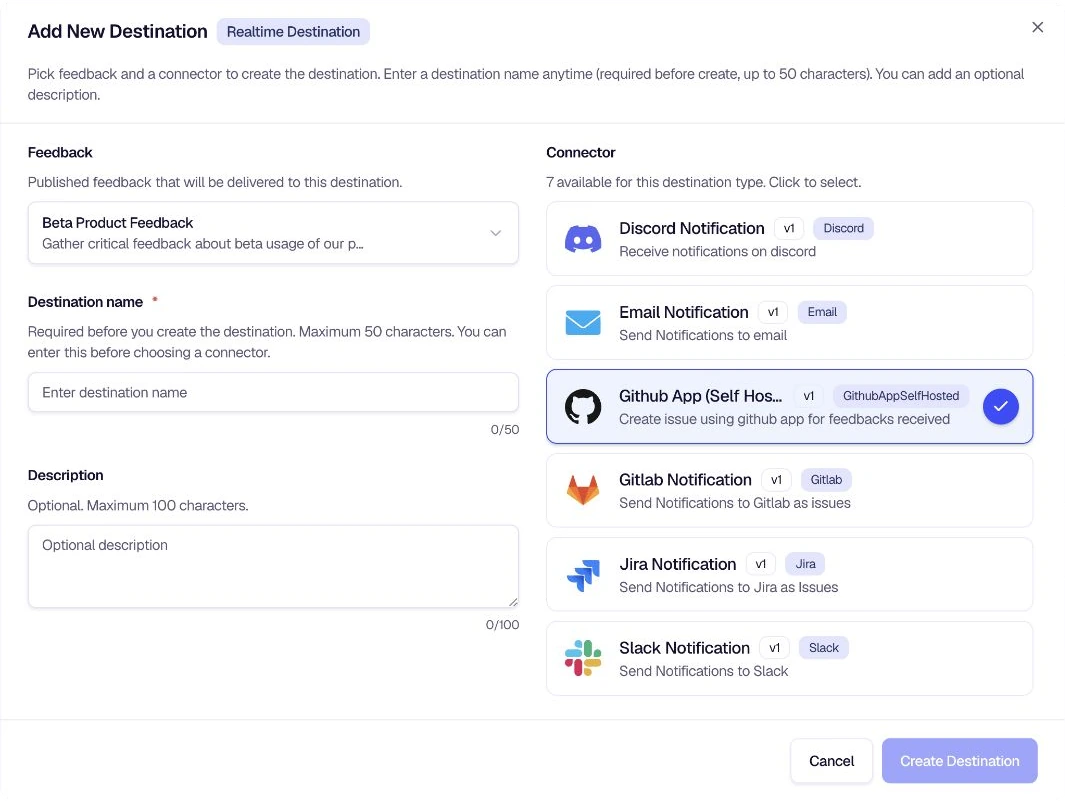
Step 3: Configure Your GitHub Destination
The Edit Destination page has two columns: Destination Details on the left and Destination Status / Configuration on the right.
Destination Details (left column)
- Type — Realtime (shown in the type selector; not editable after create)
- Feedback Configuration — The linked published form (read-only)
- Connector Configuration — Github App (Self Hosted) with description Create issue using github app for feedbacks received
- Destination Name — Edit if needed (up to 50 characters), then click Save Details
- Destination Description — Optional (up to 100 characters)
Save Details is enabled only after you change the name or description.
GitHub App credentials (right column — Configuration)
While the destination is disabled, fill in all required fields in the Configuration card:
| Field | Required | Description |
|---|---|---|
| GitHub App ID | Yes | Unique identifier of your GitHub App (App settings on GitHub). Placeholder: e.g., 123456 |
| Private Key (.pem) | Yes | Full contents of the generated private key file, including -----BEGIN RSA PRIVATE KEY----- and -----END RSA PRIVATE KEY----- |
| Repository Owner | Yes | GitHub username or organization name. Placeholder: e.g., octocat |
| Repository Name | Yes | Repository slug only (not owner/repo). Placeholder: e.g., hello-world |
| Issue Title | Yes | Title used for each GitHub issue. |
| Issue Labels | No | Comma-separated labels assigned to created issues. |
Click Save Configuration when all required fields are filled in.
When the destination is enabled, the Configuration form is read-only. Use Disable Destination first, then edit credentials and click Save Configuration again.
Step 4: Configure Filters (Optional)
The Custom Filter and AI Filter cards sit below the destination details.
- Custom Filter — Build deterministic conditions for which submissions continue to GitHub. Click Test and Enable Custom Filter to configure and validate a rule.
- AI Filter — Use natural language when the decision depends on the meaning of the response.
On the left column AI Filter card:
- Current status — Disabled or Enabled
- Test and Enable AI Filter — Opens the filter setup dialog
- When enabled, Edit & Test lets you change the prompt
The AI Filter uses natural language to decide which feedback is forwarded—for example, only low ratings or messages mentioning “bug.” See AI Filters. Each filter execution uses 1 AI Credit.
Leave the AI Filter disabled if every submission should create a GitHub issue.
Step 5: Test and Enable
In the Destination Status card, click Test & Enable Destination. encatch validates the GitHub App credentials and repository access, then enables the destination when the test succeeds.
Summary
Add destination — Destinations → + Add Destination → Realtime Destination
Select connector — Choose published feedback, enter a destination name (≤50 chars), select Github App (Self Hosted), click Create Destination
Save app credentials — Enter GitHub App ID, Private Key (.pem), Repository Owner, and Repository Name, then Save Configuration
Set issue details — Add the Issue Title and optional comma-separated Issue Labels.
Optional — Configure a Custom Filter or AI Filter to limit which feedback creates issues.
Test and enable — Click Test & Enable Destination to validate the GitHub App connection and activate the destination.
Tips and Best Practices
- Install the GitHub App on the repo first — encatch cannot create issues until the app is installed on the target repository with issue creation permission.
- Paste the full private key — Include the
BEGINandENDlines exactly as in your.pemfile. - Use owner and repo separately — Repository Owner is the user or org; Repository Name is the repo slug without the owner prefix.
- Use consistent issue labels — Apply labels that already exist in the repository so incoming feedback fits your triage workflow.
- Disable before editing config — Saved credentials cannot be changed while the destination is enabled.
Troubleshooting
Was this page helpful?