

Source Tracking
Capture URL tracking parameters alongside feedback submissions
Source tracking records selected URL query parameters when someone views or submits a feedback form. Use it to tie responses back to marketing campaigns, ad clicks, and referral links—without adding extra questions to the form.
Typical parameters include UTM tags (utm_source, utm_medium, utm_campaign) and platform click IDs (gclid, fbclid, msclkid).
When to use
- You run paid or email campaigns with UTM parameters on landing pages
- You need to know which ad, channel, or campaign drove each response
- You want to filter or export responses by
utm_campaign,utm_source, or similar - You use custom query params (e.g.
ref,affiliate_id) and want them stored with submissions
How it works
- Configure which parameter names to capture on the feedback form (Distribution → Advanced Options).
- Visitor arrives on a page with query parameters in the URL, e.g.
?utm_source=google&utm_campaign=spring_sale. - Form is shown — matching values from the page URL are captured for that form.
- Submission — only the parameters you enabled are stored on the response as key/value pairs.
- Reports — view, filter, and export source data in the admin UI.
Only parameters you explicitly enable for that form are saved. If a parameter is configured but missing from the URL, it appears empty (N/A) in results.
Configuration
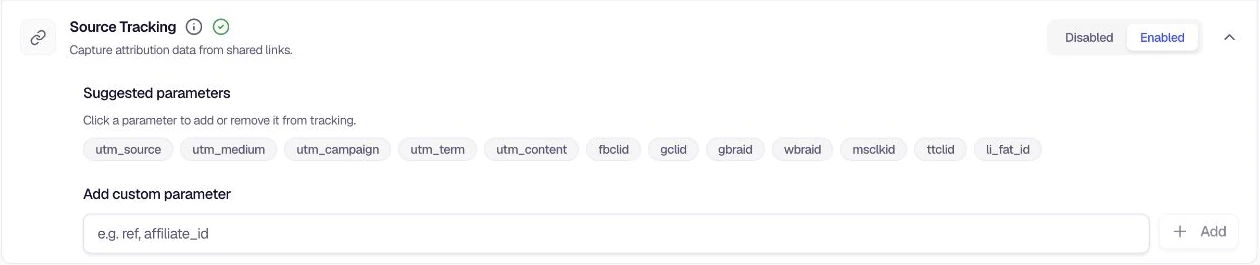
- Open your feedback form and go to Distribution → Advanced Options.
- Find Source Tracking and switch from Disabled to Enabled.
- Under Suggested parameters, click the tags you want to track (UTM fields, click IDs, etc.).
- Optionally add custom parameters (letters, digits, underscores, hyphens only; max 25 characters per name).
- Save the form.
You must enable at least one parameter for source tracking to take effect. Disabling source tracking clears the parameter list when the form is saved.
Suggested parameters
| Parameter | Purpose |
|---|---|
utm_source | Site, search engine, or newsletter that sent the traffic |
utm_medium | Marketing medium or channel (e.g. cpc, email, social) |
utm_campaign | Campaign or promotion name |
utm_term | Paid search keywords |
utm_content | Differentiates ads or links on the same URL |
fbclid | Facebook Ads click ID |
gclid | Google Ads click ID |
gbraid | Google web-to-app click ID (iOS) |
wbraid | Google app-to-web click ID (iOS) |
msclkid | Microsoft (Bing) Ads click ID |
ttclid | TikTok Ads click ID |
li_fat_id | LinkedIn Ads first-party tracking ID |
Viewing results
Individual responses
Open Individual Responses and select a submission. When source tracking is enabled for the form:
- A Source Tracking tab shows configured parameters and their captured values
- The response sidebar includes a Source Tracking section when data was captured
Filtering
On Summary Report, Audience Overview, and Individual Responses, a Source Tracking filter category appears when the form has source tracking enabled with at least one parameter. Filter by conditions such as:
utm_sourceEqualsgoogleutm_campaignInspring_sale,product_launch
Supported operators for source tracking filters: Equals and In.
Export
When exporting individual responses, include the Source tracking column group to export captured parameter values.
Example
A landing page URL:
https://app.example.com/pricing?utm_source=google&utm_medium=cpc&utm_campaign=q2_promo&gclid=abc123If the form tracks utm_source, utm_medium, utm_campaign, and gclid, a submission stores:
| Key | Value |
|---|---|
utm_source | google |
utm_medium | cpc |
utm_campaign | q2_promo |
gclid | abc123 |
Parameters present in the URL but not configured for the form are ignored. Configured parameters missing from the URL are stored as empty for that response.
Related
Was this page helpful?