

Export Reports
Download feedback export jobs and analyze them with Open with AI (Claude or Codex)
The Export Reports page lets you view, download, and analyze export jobs for your project. Each row links back to the feedback it came from, so you can jump from an export file to that form's results.
Open Export Reports from the project sidebar to see all export jobs, their status, and download actions.
Export jobs list
The page shows a table of export jobs with:
- Status — Pending, Initializing, Running, Completed, or Failed (see the status legend above the table)
- Export — File name and linked feedback title
- Timeline — Created, completed, and expiry times
- Actions — Download and Open with AI
Use + Create new export to start a new export job, or Refresh to update the list.
Gzip-compressed downloads
Exports arrive as .gz files. Unzip them before opening with 7-Zip, WinRAR, The Unarchiver, or your OS built-in archive tool. The file inside is typically CSV or JSON.
Download an export
For a Completed export, click the download icon to save the .gz file to your computer. Decompress it, then open the CSV or JSON in your spreadsheet, BI tool, or script.
Open with AI
For completed exports, use Open with AI to send the export to an external assistant for analysis. The dropdown offers two providers:
| Provider | Where it opens | Best for |
|---|---|---|
| Claude | Claude on the web or Claude Desktop | Slide-style summaries, themes, sentiment, and chart-ready breakdowns |
| Codex | Codex desktop app | Code-oriented analysis and scripted exploration of export data |
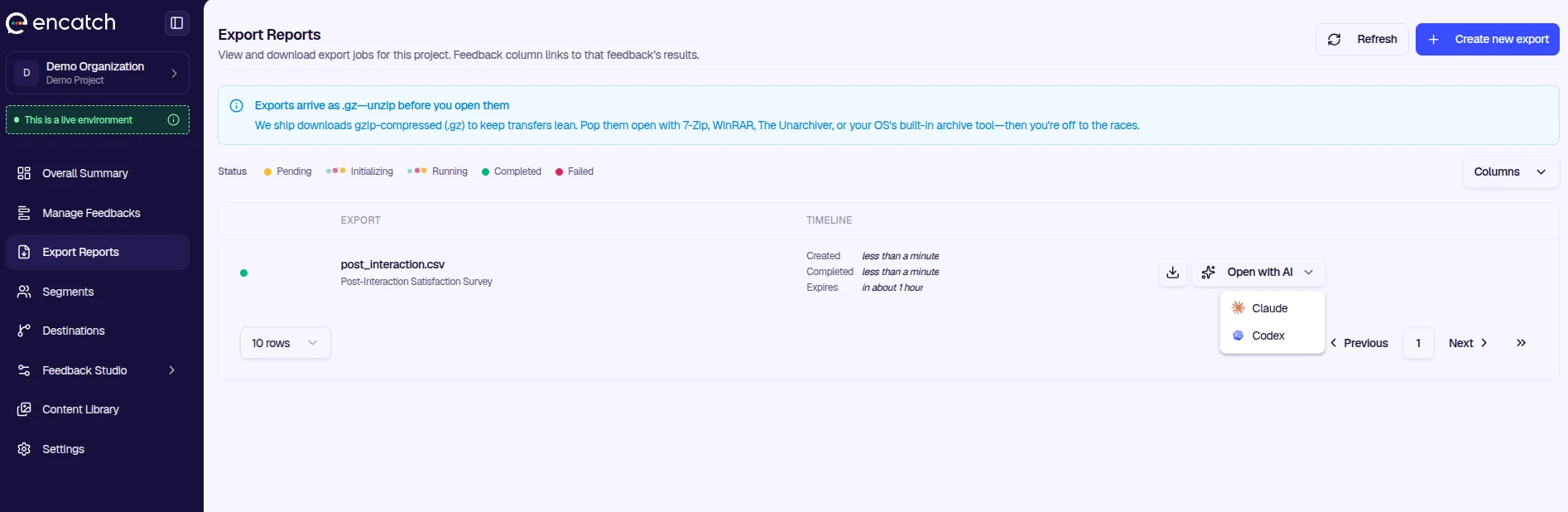
Both options open a configuration dialog where you edit what the AI should analyze. encatch automatically includes the system instructions, file name, and secure download URL in the prompt.
Open with Claude
Select Claude from the Open with AI menu to open the Open with Claude dialog.
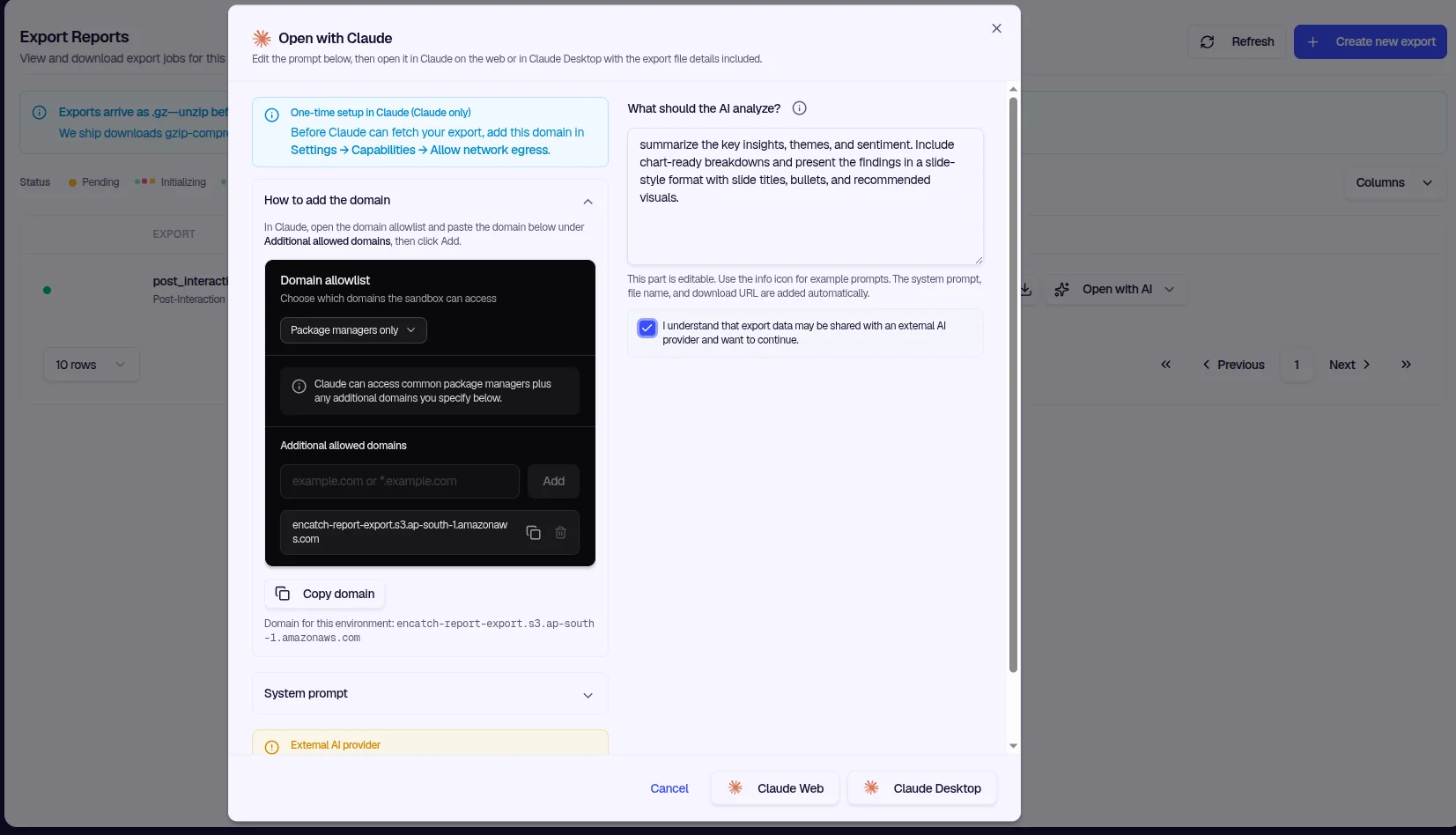
One-time setup (Claude only)
Before Claude can fetch your export, add the export download domain to Claude's allowlist:
- In Claude, go to Settings → Capabilities → Allow network egress
- Under Additional allowed domains, paste the domain shown in the dialog (for example
encatch-report-export.s3.ap-south-1.amazonaws.com) - Click Add
Use Copy domain in the dialog to copy the exact domain for your environment. Expand How to add the domain for step-by-step guidance.
Configure your analysis
- Edit What should the AI analyze? — Describe what you want (for example, summarize themes, sentiment, or recurring issues). Click the info icon for example prompts such as Executive summary, Find recurring issues, Sentiment and themes, or Prioritize improvements.
- Review the System prompt accordion — encatch adds instructions that the file is gzip-compressed CSV/JSON, plus the file name and download URL.
- Check I understand that export data may be shared with an external AI provider and want to continue.
- Click Claude Web or Claude Desktop to open Claude with the prefilled prompt.
Claude downloads the export, decompresses it, and analyzes it according to your instructions.
External AI provider
Opening an export in Claude shares export data with Anthropic. Review Claude's privacy policy before continuing.
Open with Codex
Select Codex from the Open with AI menu to open the Open with Codex dialog.
The flow is similar to Claude, with Codex-specific setup:
- Codex desktop app required — Codex opens in the desktop app. Install it before continuing.
- Allow network access — When Codex prompts for network access to download the export, click Allow for the domain shown in the dialog.
- Configure your analysis — Edit the prompt, accept the external AI consent checkbox, then click Codex App.
External AI provider
Opening an export in Codex shares export data with OpenAI. Review OpenAI's privacy policy before continuing.
Example analysis prompts
Use these as starting points in What should the AI analyze? (via the info icon or by typing your own):
- Executive summary — Key insights, themes, sentiment, and top action items in a slide-style format
- Find recurring issues — Group similar feedback and rank by frequency and business impact
- Sentiment and themes — Positive and negative themes with chart suggestions
- Prioritize improvements — A prioritized backlog with impact-effort framing
Summary
| Action | How |
|---|---|
| View exports | Sidebar → Export Reports |
| Download | Click the download icon on a completed job; unzip the .gz file |
| Analyze with Claude | Open with AI → Claude → configure prompt → Claude Web or Claude Desktop |
| Analyze with Codex | Open with AI → Codex → configure prompt → Codex App |
For in-product AI analysis without external providers, see Feedback Studio.
Was this page helpful?