

Analyse with Your AI
Prepare feedback data and continue the analysis in Claude, ChatGPT, Cursor, or another AI tool
Analyse with Your AI helps you take feedback beyond the built-in dashboards. Use the Analyze with AI widget in the admin UI to prepare live response data, add a focused prompt, and continue the analysis in Claude, ChatGPT, Cursor, or another AI tool.
You can use it to investigate one form in detail or compare patterns across multiple forms in a project.
Where to find it
Look for the floating Analyze with AI button on a page with live feedback results. The widget is available in two scopes:
| Scope | What it prepares | Good for |
|---|---|---|
| Project | A separate export for every form with responses in the selected period | Comparing forms, finding project-wide patterns, and preparing review reports |
| Form | An export for the form you are viewing | Drill-down analysis, question-level investigation, and form-specific reporting |
The widget is not shown while you are viewing sample data. Switch to live results before preparing an analysis.
Prepare the feedback data
- Select Analyze with AI.
- Under New, choose a preset or custom date range. The maximum available range depends on your plan.
- Decide whether to Include user traits. Traits can make segmentation more useful, but may also include personal or sensitive attributes.
- Choose CSV for broad compatibility or Parquet for larger, typed datasets.
- For project analysis, check how many forms have responses in the selected period.
- Select Prepare for analysis.
Open Recent to follow the export progress. When the files are ready, select Open with AI.
Tell the AI what to analyse
In the Open with AI dialog, enter a clear outcome in What should the AI analyze? You can write your own instructions or select Choose prompt to use:
- A built-in prompt for an executive summary, recurring issues, sentiment and themes, or prioritised improvements.
- A custom prompt created in Pre-defined Prompts.
encatch automatically adds the export file details, secure download links, and available schema information to the prompt. You do not need to paste those details yourself.
Make the request specific
State the audience, decisions to support, dimensions to compare, and the format you want. For example: “Compare course and trainer ratings, separate strengths from improvement areas, and build an executive review dashboard with filters and supporting evidence.”
Open the analysis
After reviewing the prompt and accepting the external-provider acknowledgement, choose where to continue:
- Claude — Open on the web or in Claude Desktop.
- ChatGPT — Open in the ChatGPT desktop app.
- Cursor — Open the prompt in Cursor.
- Copy — Copy the complete prompt and paste it into any AI tool.
The first use of a provider may require its one-time setup. Follow the instructions shown in the provider tab. Your selected external provider receives the exported data, so review the data scope and your organisation's privacy requirements before continuing.
Use case: build a drill-down report
Ask your AI tool to turn feedback into an interactive, decision-ready report. A useful drill-down can combine filters, headline metrics, rating distributions, recurring strengths, improvement areas, and evidence-backed recommendations.
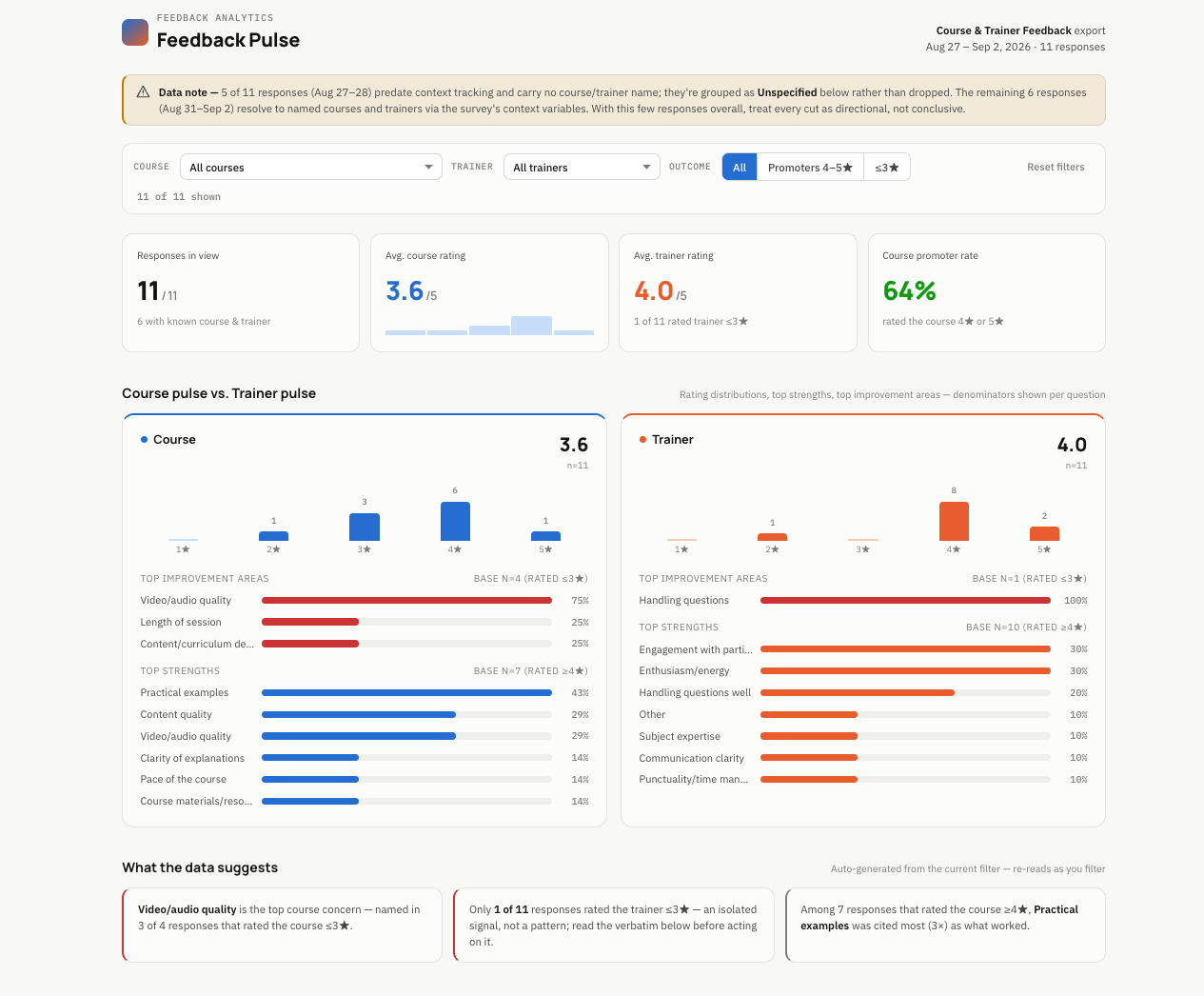
For example, ask it to:
Build a clean feedback review dashboard for the selected date range. Let reviewers filter by course, trainer, and outcome. Compare course and trainer ratings, identify the strongest and weakest themes, show the denominator behind every percentage, and summarise what the data suggests. Flag small samples and missing context so the conclusions are not overstated.
Treat the generated report as a starting point. Validate calculations against the source export, check small sample sizes, and review representative responses before making decisions.
Use case: generate presentation summaries
Turn the same feedback export into a review-ready presentation. Ask the AI to organise the story into clear slides, select appropriate charts, show the base behind every metric, and distinguish strong evidence from directional findings.
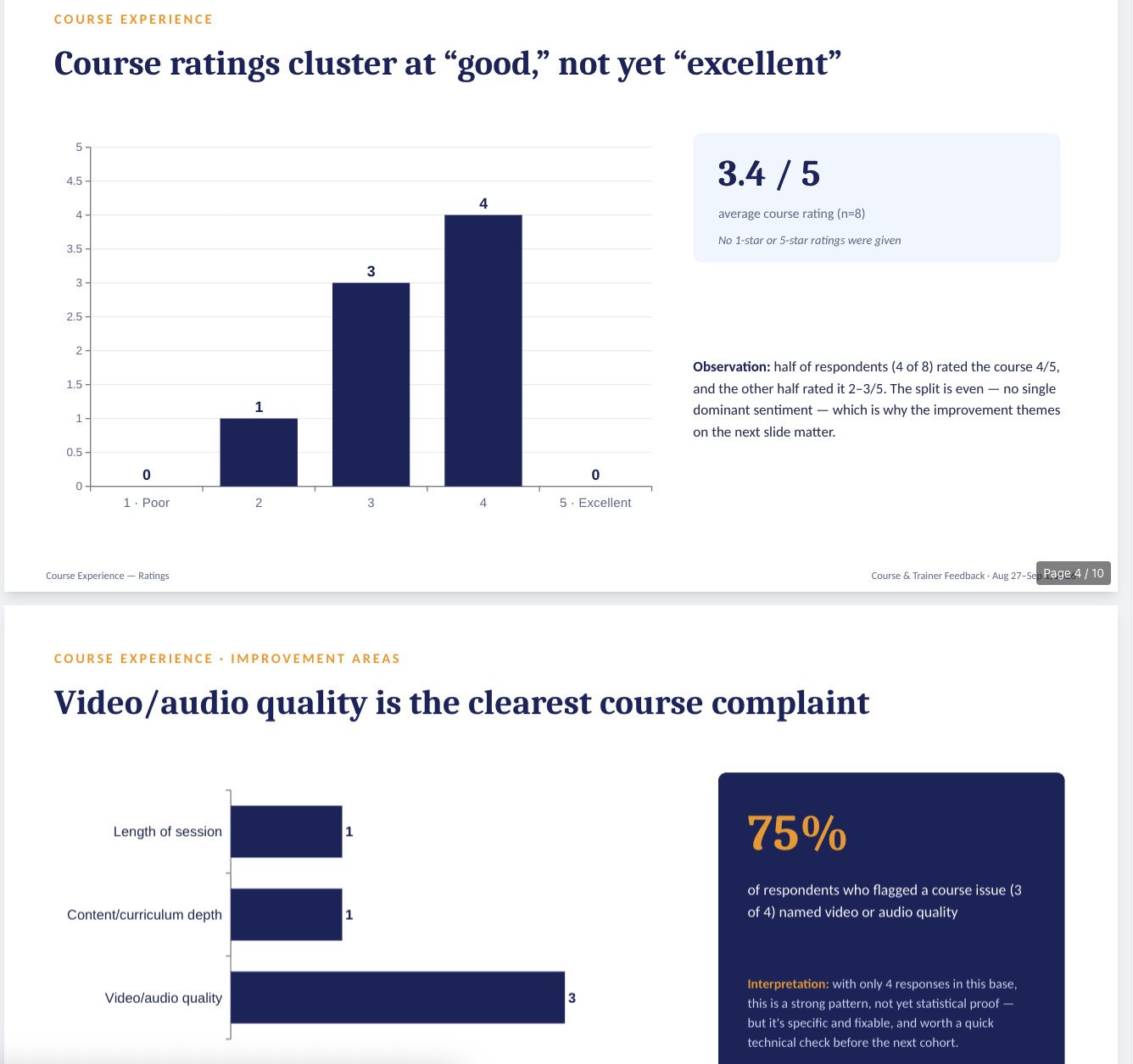
For example, ask it to:
Create a concise presentation for a feedback review meeting. Begin with the date range, response count, and important data limitations. Use one conclusion-led headline per slide, support it with a readable chart, and explain what the result means. Cover overall ratings, strengths, improvement areas, representative feedback, and recommended next actions. Always show the response base and describe small samples as directional rather than conclusive.
Review the finished presentation before sharing it. Confirm that every chart matches the export, percentages use the correct denominator, and quotations do not expose personal information.
More analysis ideas
- Triage issues — Group feedback by priority and business area, such as billing, onboarding, reliability, or support, then rank issues by frequency and impact.
- Compare forms — Find themes shared across forms and call out patterns unique to a particular audience or workflow.
- Create a drill-down — Start with headline metrics, then let reviewers filter into segments, questions, themes, or individual responses.
For downloadable job history and manual exports, see Export Reports.
Was this page helpful?