

Ready Templates
Create feedback forms from pre-built templates—browse by role, industry, and goal, preview live, customize, and publish
The template browser helps you create feedback forms from pre-built starting points. Open Forms and click New Form to browse templates, load a live preview, and create an editable draft. Start blank stays on that catalog, and Encatch AI is the Encatch AI & MCP tab in the same dialog.
Why Use Ready Templates?
- Best-practice design — Templates are designed for common feedback scenarios (NPS, CSAT, feature requests, onboarding) with appropriate question types and flow.
- Quick discovery — Browse by team category and select a template from the list.
- Live preview — Preview any template before using it, then launch or customize in minutes.
- Full control — Templates are starting points. You keep full control to add, remove, or edit any question, page, or option before launch.
Accessing the Ready Templates Page
- Open Forms in the encatch dashboard.
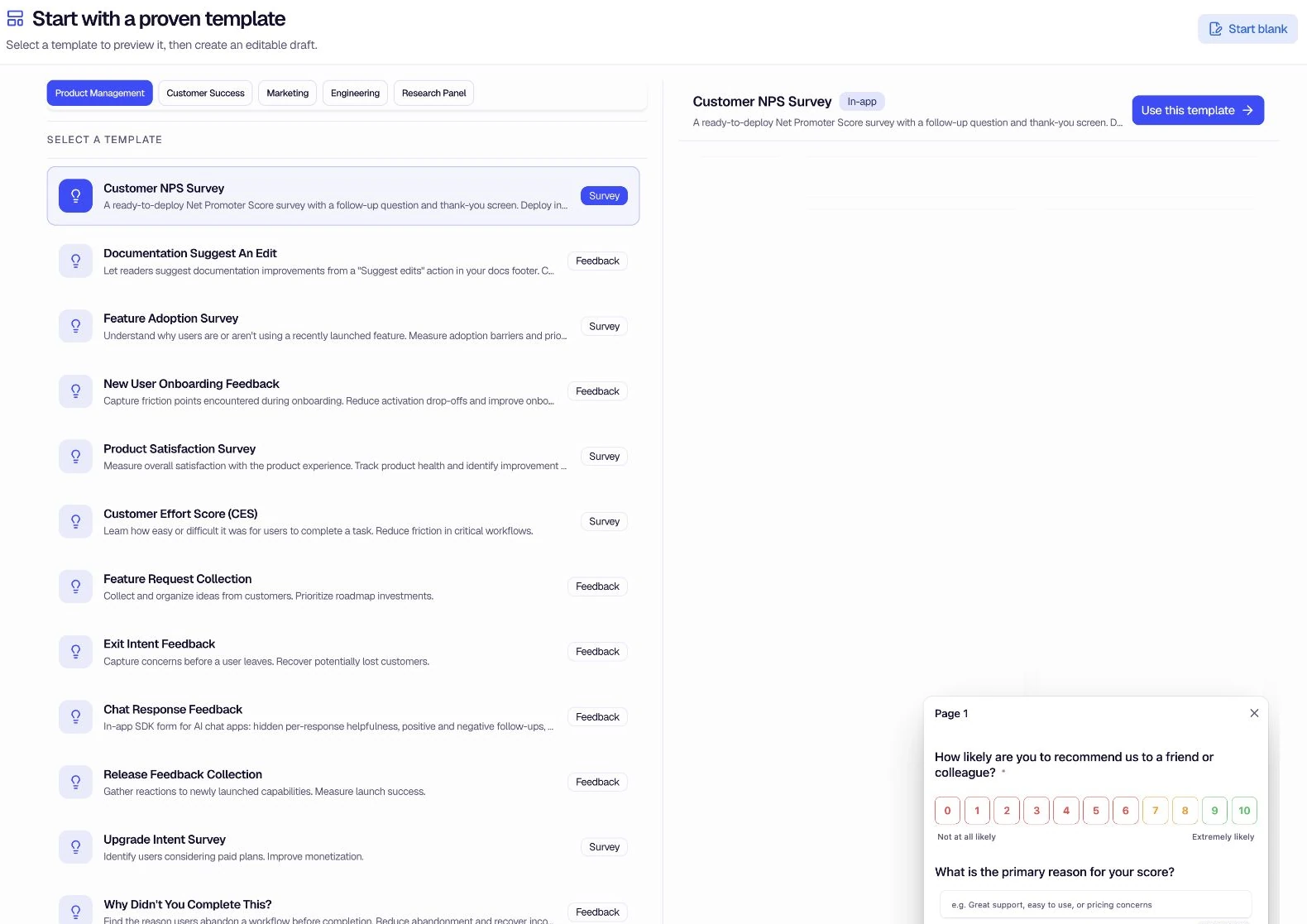
- Click New Form to open Start with a proven template.
Browse and Filter Templates
Choose a category such as Product Management, Customer Success, Marketing, Engineering, or Research Panel. The left side lists templates with descriptions and type labels. Selecting a row loads its description, delivery label, and live preview on the right.
How to Use Ready Templates
Step 1: Browse and Filter
- Choose a category — Use the category buttons above the list.
- Compare templates — Read the title, description, and Survey, Feedback, or Form label in each row.
- Browse the full gallery — Use Browse all templates to open the complete catalog at templates.encatch.com. Choose a template there and deploy it directly into your Encatch account.
Step 2: Preview a Template
Select a template row that fits your use case. Its live preview opens on the right so you can review the form before using it.
Step 3: Use the Template
- Click Use this template beside the preview to create a new form based on the selected template.
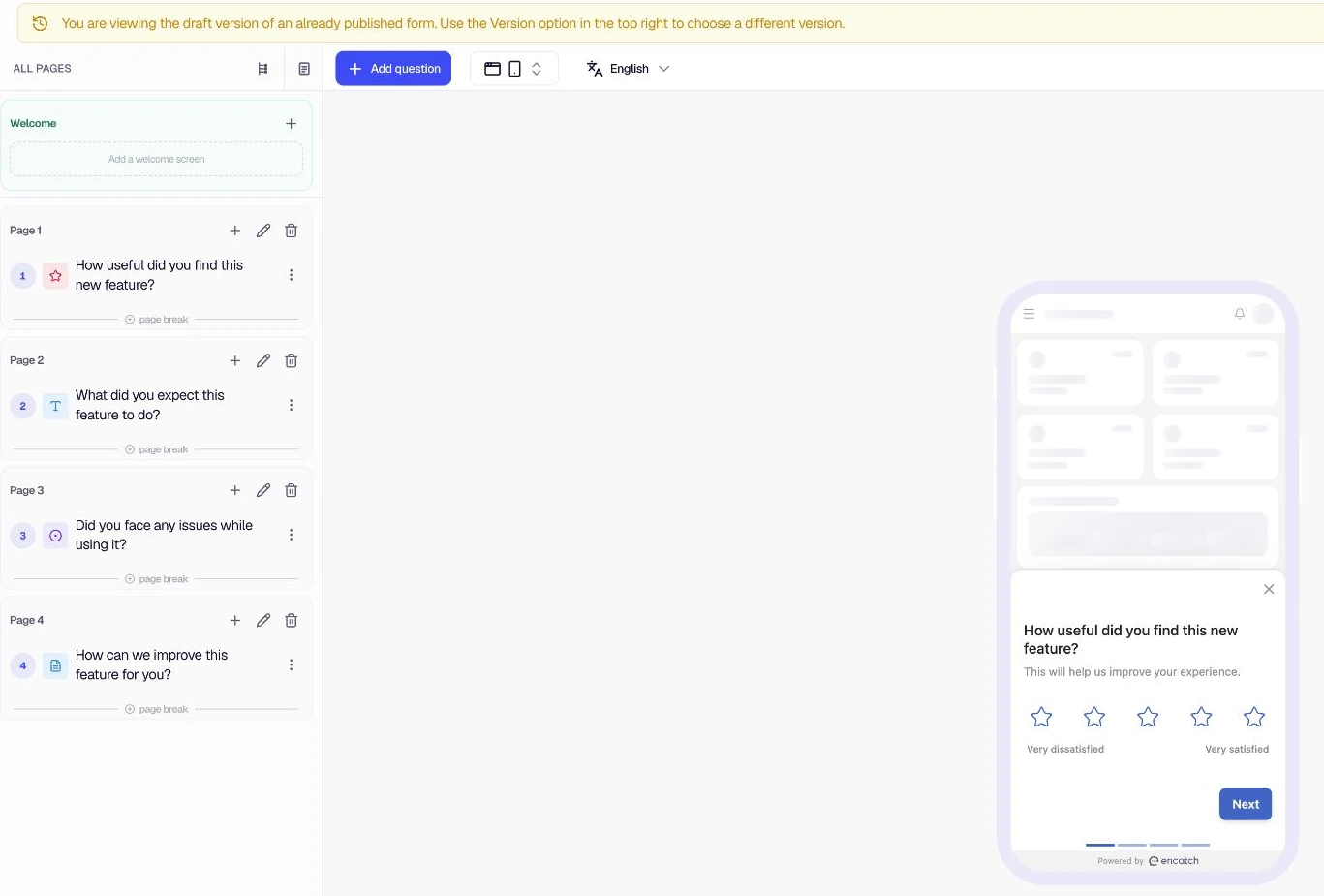
- encatch creates a draft form with all questions and structure pre-filled. You land in the Form Builder.
Step 4: Customize in the Form Builder
In the Form Builder, you can fully customize the form before publishing:
- Edit questions — Change wording, answer types, and settings using the pencil icon.
- Reorder — Use the drag handle to move questions within or between pages.
- Add or remove — Use + Add Question to add fields; use the trash icon to delete questions or pages.
- Configure screens — Enable and configure the Welcome Screen and End Screen.
- Other settings — Adjust languages, appearance, targeting, triggers, and advanced options from the form tabs.
A real-time mobile preview shows how the form will appear to respondents. Use Save now to save progress without publishing.
Step 5: Publish
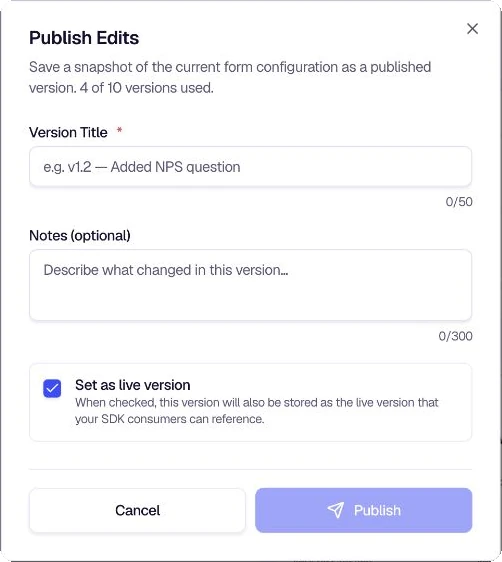
When the form meets your needs, click Publish to make it live. Before publishing, ensure targeting, triggers, and appearance are configured as desired.
Download and upload templates
You can move a form design between projects or keep it as a reusable JSON template.
Download a form as JSON
- Open the form in the builder.
- Open More form actions in the top-right corner.
- Under Templates, select Download as template.
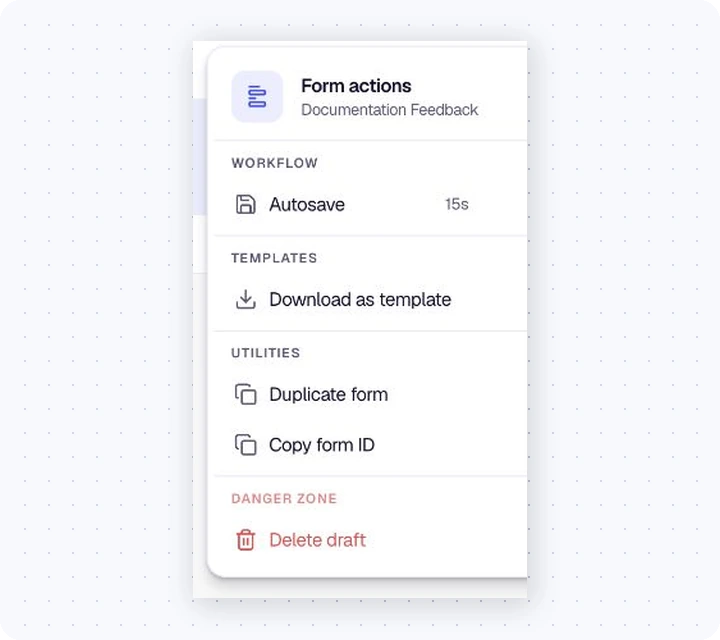
The downloaded file contains the form structure and configuration. It does not contain collected responses.
Upload a saved template
- Open Forms → New Form.
- Go to My saved templates.
- Select Upload template and choose the downloaded JSON file.
- Review the imported template, then use it to create an editable draft.
Treat imported templates as starting points. Review targeting, triggers, destinations, and environment-specific settings before publishing in another project.
Example Templates
- Feature Adoption Survey — Understand how users discover and adopt new features.
- New User Onboarding Feedback — Capture friction points during onboarding and improve activation.
- Product Satisfaction Survey — Measure overall satisfaction and identify areas for improvement.
- Feature Requests — Gather new feature requests from your customers.
- Help Center Feedback — Make your help center more helpful and resolve issues quickly.
- Mobile UX — Improve the user experience of your mobile app.
- Build a Research Panel — Create a survey to build a panel of participants for future interviews.
Summary
| Step | Action |
|---|---|
| Access | Open Forms → New Form |
| Browse | Choose a team category and select a template row |
| Preview | Review the selected template in the live preview |
| Use | Click Use this template to create a draft form |
| Customize | Edit in the Form Builder—add, remove, reorder questions |
| Publish | Click Publish to make the form live |
Ready Templates streamline feedback form creation by providing proven starting points for common scenarios. You keep full control to tailor every form to your needs. For more on customizing forms, see Customize Feedback Form.
Was this page helpful?