

Add an AI provider
Create an encrypted project connection to Vercel AI Gateway, OpenRouter, or cloud providers
Provider connections are created at the project level. After a connection exists, configure the default connection and model and map capabilities on AI Provider (overview).
Before you begin
- Your organization is on the Growth or Enterprise plan.
- You have global settings access for the project (or a role that includes it).
- An organization admin has enabled Bring your own key under Manage Org & Projects → Settings → AI settings. See Availability on the overview.
- You have an active account with a supported provider (Vercel AI Gateway, OpenRouter, Amazon Bedrock, Google Vertex AI, Azure OpenAI, or Azure AI Foundry), with billing enabled.
- You have an API key from that provider with access to the model you plan to use.
Add your provider
- Open the project and go to Settings → Global Settings → AI Provider.
- Click Add connection.
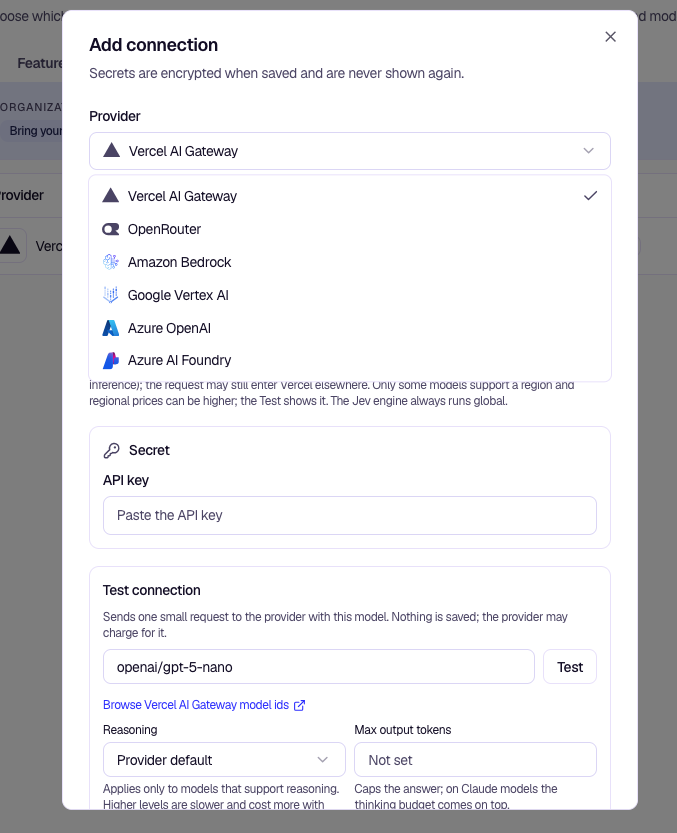
- Select your Provider from the list.
- Under Secret, paste your API key or other credential your provider requires. Fill in any other fields your provider needs.
- Optionally enter a Model ID, configure Test connection (see below), and click Test to verify the key with your provider before you save. The test sends one small request; nothing from the test is saved in Encatch, but your provider may charge for it. The connection is not saved until you click Save.
- Click Save.
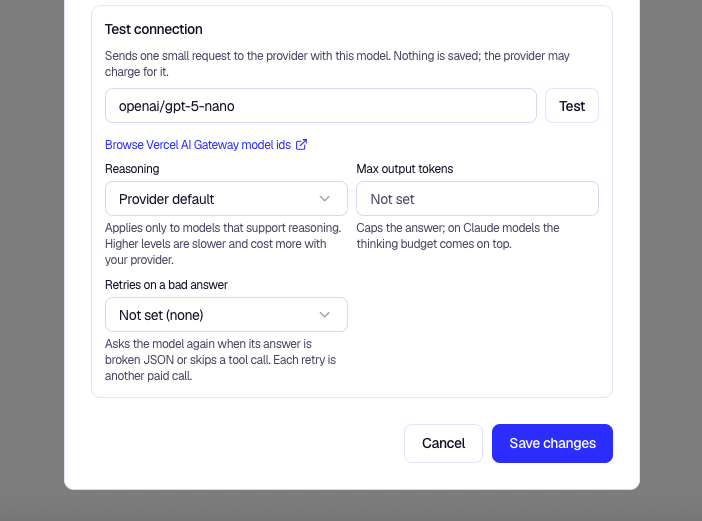
The same Reasoning, Max output tokens, and Retries on a bad answer controls appear when you set the project default model or a capability Override on the AI Provider page after the connection exists.
Max output tokens
Max output tokens caps the model’s answer for requests that use that model configuration. Excess output beyond the cap is not used, which helps control cost and avoid unexpectedly long responses.
If you leave it Not set, Encatch does not apply this cap (your provider’s model limits still apply). On Claude models that use extended thinking, the thinking budget comes on top of this cap—the field limits the visible answer, not internal reasoning tokens.
Monitor output token usage in your provider’s console (usage, billing, or analytics). When you see typical and peak usage, set Max output tokens to match, or leave headroom for capabilities that need longer answers.
Reasoning
Reasoning applies only to models that support reasoning. Higher levels use more internal reasoning, which is slower and costs more with your provider.
| Option | When to use it |
|---|---|
| Provider default | Let the provider’s default apply (good starting point). |
| None | Turn off extra reasoning where the model allows it. |
| Minimal through Extra high | Increase depth step by step when a capability needs stronger reasoning and you accept higher latency and cost. |
If the model does not support reasoning, this setting has no effect. Prefer Provider default until you know a specific capability benefits from a higher or lower level.
Retries on a bad answer
Retries on a bad answer asks the model again when its answer is broken JSON or skips a required tool call. Choose Not set (none) or No retries to disable retries, or 1 retry through 5 retries to allow extra attempts.
Each retry is another paid call to your provider and adds latency. Retries help on capabilities that require strict structured output; use fewer retries—or leave them unset—when cost and speed matter more.
You can change Max output tokens, Reasoning, and Retries on a bad answer later when you edit the connection, update the default model, or adjust a capability Override.
Use provider documentation—and links such as Browse Vercel AI Gateway model ids in the dialog—to pick models that work for each AI capability you plan to use (for example structured output or streaming).
Result: The connection is saved for this project. Set the default connection and default model, then save project AI settings. Encatch AI features in this project then run on your provider, and Encatch does not deduct AI credits for that usage.
Important
You cannot view the key in Encatch after saving. If you need the key elsewhere, create a separate key in your provider's console instead of copying this one around.
Next steps
- Map each AI capability to Use default, Override, or Disabled on the AI Provider page.
- For ongoing tests, key rotation, and removal, see Manage providers.
Was this page helpful?